Posts - Page 155 (page 155)
-
 A WordPress theme is a collection of files that define the layout, design, and functionality of a WordPress website. Themes control the visual presentation of a website, including the layout, colors, and styles of various elements such as the header, sidebar, and footer. Users can install and switch between different themes to change the appearance of their website without modifying the underlying content or code. Wordpress.org has a large repository of free and paid themes that can be easily installed on a website.
-
 PHP (Hypertext Preprocessor) is a programming language primarily used for creating dynamic web pages. It is typically used on the server-side (server-side scripting) to create web pages that are generated in response to a user's request. PHP is widely used because it is easy to learn and use, and it is supported by a large community of developers. MySQL is a popular database management system (DBMS) used for storing and retrieving data. It is used to store and manage data for websites, applications, and more. MySQL is a popular choice because it is easy to use, affordable, and has a large support community.
-
 If you are looking for the most popular and reliable website building platform regarded as the best globally, WordPress has something special for you. WordPress is web application software that allows people to build their websites and blogs to publish online content.
-
 Cyber security is not an entry-level field, which means that there are a few fundamental skills and knowledge you must be familiar with before diving into it. It would help if you had some mastery of technical and non-technical skills to excel in this field. To be a cyber security expert, truth be told, you must be a jack of all trades. It would be best to have a good grasp of networking, system administration, command-line coding, forensics, reverse engineering, cyber operations, audit and compliance and digital security. This article will explain the cyber security books you will need to become a competent cyber security expert.
-
 WordPress is the greatest content management platform. However, it does not replace the SEO strategies in any way. WordPress and other content management systems save time and work according to the right practices even if they have insufficient experience, but an SEO company ensures the website is ranked higher on Google. Therefore, SEO and CMS complement each other when technical issues emerge.
-
 You can learn how to start a WordPress site using the Internet as your primary teaching tool. WordPress is very easy to use, fortunately, even for dummies. Many an ebook can be found on this subject. You need woocommerce as an open-source e-commerce plugin that helps your website function. Paying for WordPress comes out to being $96 a year. This plug-in helps you sell online with the eCommerce platform. WordPress itself is defined as a blog platform that allows anybody to set up a WordPress site.
-
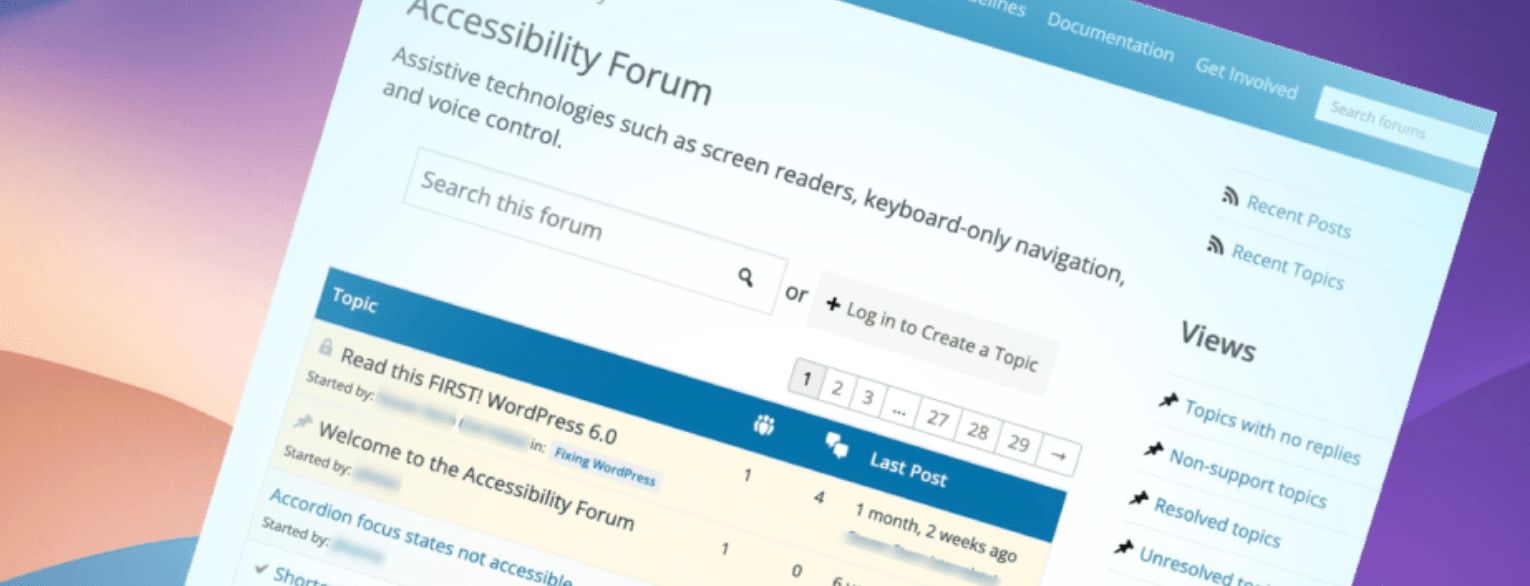 WordPress is a popular open-source content management system (CMS) used for building websites, including blogs. It is widely used for its ease of use, flexibility, and customization capabilities, making it a great choice for bloggers who want to create and manage their online presence. WordPress offers a range of templates and plugins to help users create a visually appealing and functional blog, with features such as the ability to easily add text, images, and media, manage comments, categorize content, and much more. Additionally, it's free and has a large online community, providing users with access to support and resources to help them get the most out of their blog.
-
 WordPress is a free and open-source content management system (CMS) based on PHP and MySQL. It is widely used for creating and managing websites, blogs, and other types of online content. With its user-friendly interface and customizable features, WordPress has become the most popular platform for website development.
-
 Quora is a website where people ask questions, answer each other's questions, and explore a broad range of daily life topics. The goal is to help find remote answers that are sometimes difficult to find in your narrow network. Quora is both a social media platform as well as an source of information. The site is aimed at individual users who want a better understanding of topics of current affairs, culture, economics, and technology.
-
 Blogging is one of the easiest and most cost-effective ways to expand your business. Unfortunately, there are many bloggers who have been blogging for years without any success. This can be discouraging! The good news is that there are a lot of books out there that will help you get ahead in the blogosphere. In this post, we will talk about some of the information that has helped a blogger to get ahead in the past.
-
 Back doors were also discovered in 3 popular WordPress plugins. We wanted to get the word out to our clients, and all the WordPress users out there as quickly as possible, so you can protect your sites from any possible issues. We highly recommend you take a moment to read through this post, and keep your eyes on our Twitter stream as well to stay updated. At this point, the situation is unsettled, and information is still coming in, so there may be frequent updates throughout the day.
-
 If you wanted to find a good alternative to Wordpress that you can read about those four best alternatives to Wordpress. If I were you, I would attempt Blogweb first as it is the easiest and cheapest option to start with.